Lecture 4 - Hello git: save points for your code
Announcements
Git Concepts
Is this familiar to anyone?
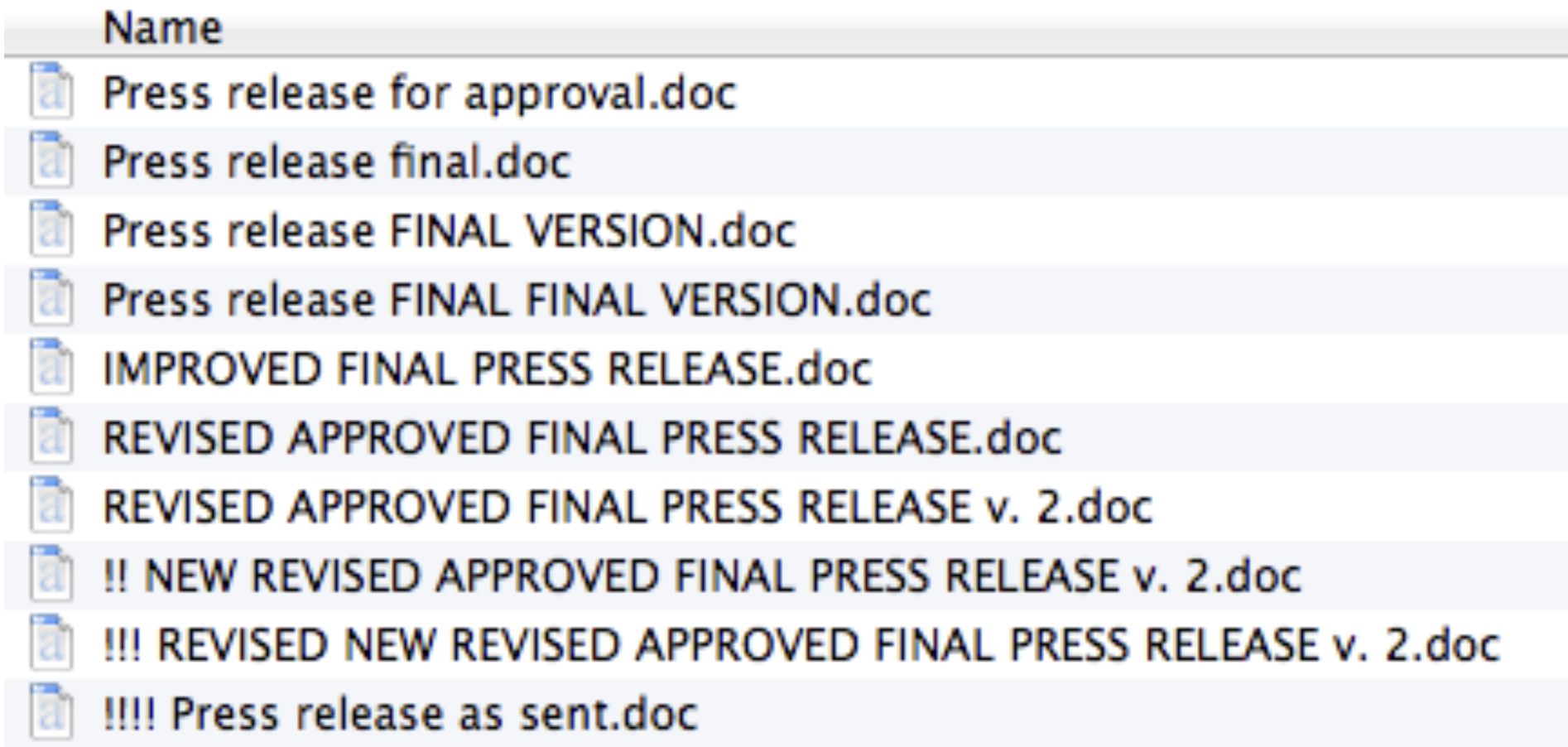
Have you ever saved final_v2_ACTUAL.docx? What problem were you solving?
The problem with "manual" version control
- Storage space (due to redundancy)
- Hard to see what changes were made when
- Hard to collaborate (merge, review)
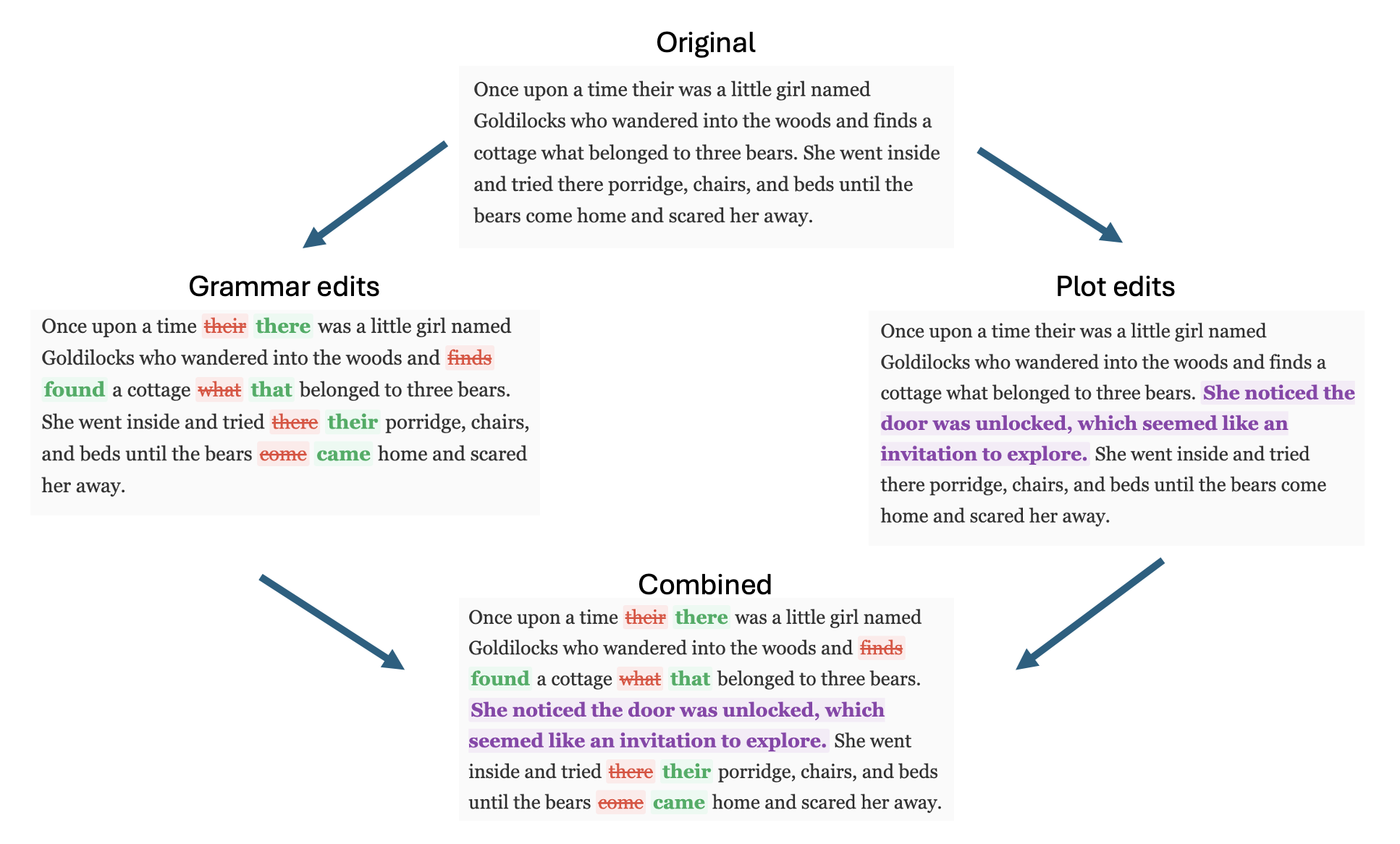
The collaboration problem
Learning Objectives
By the end of this lecture, you should be able to:
- Say why version control matters, and what it gives you that a folder of dated copies does not
- Configure git for first-time use
- Turn a project you already have into a repository, and clone one you don't
- See what you changed, and undo it
- Run the everyday loop:
status,add,commit,push - Connect a local repository to GitHub
This is a lot to take in at once, but we will be practicing and developing it ALL semester. Today we'll go over the loop you will run every day, and we'll talk about branches and merging on Monday.
One repo, two copies, and a staging area
Repository (repo). A project folder that git is tracking (your files plus their historical versions).
It can live in two places at once:
- Local is the copy on your laptop. This is the one you edit
- Remote is a copy hosted somewhere everyone can reach, usually on GitHub. Nobody edits this one directly
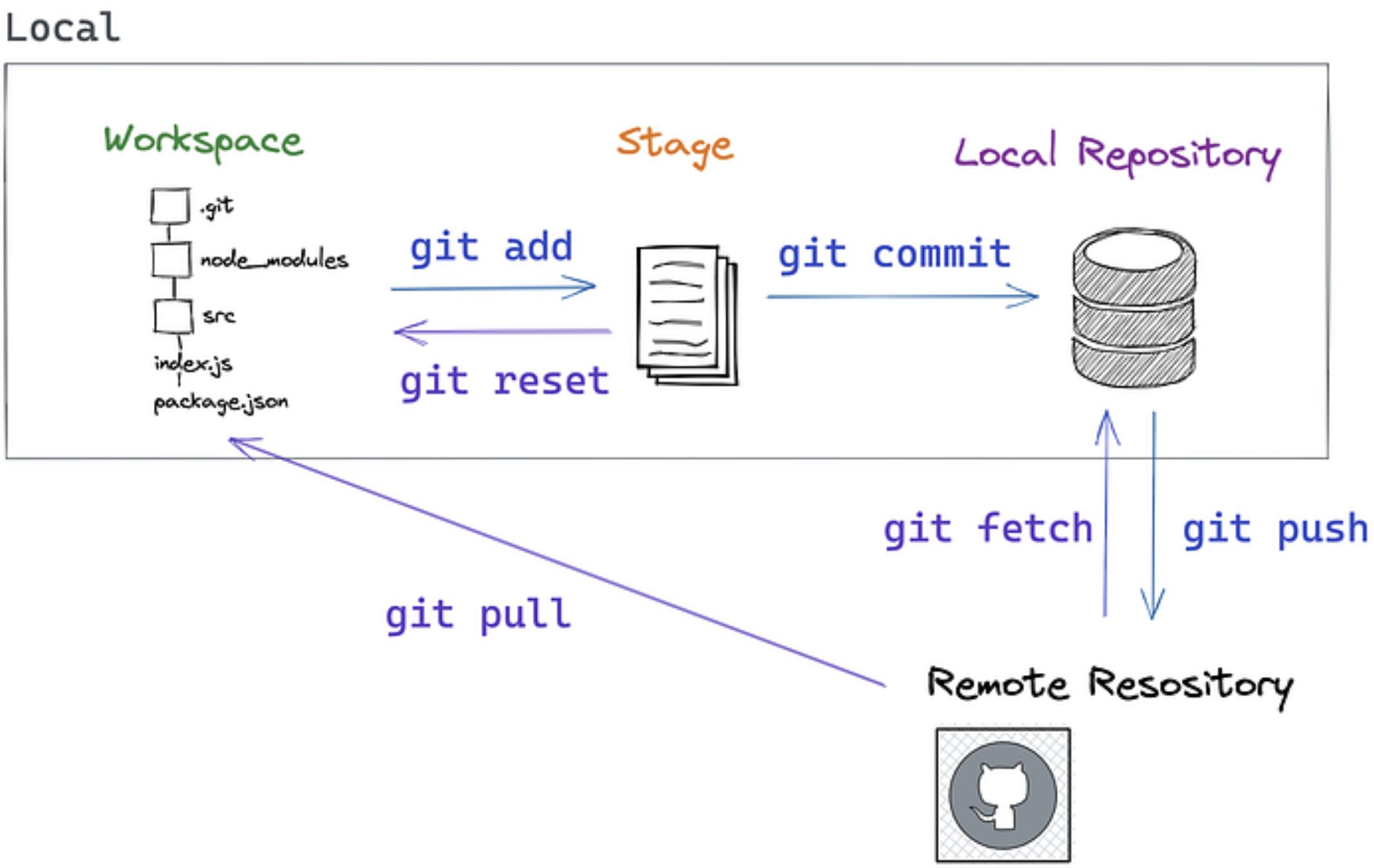
Most of your work happens locally. Only push and pull move work between the copies.
Staging: the batch you are about to save
Git does not save everything you changed. It saves what you chose.
Workspace. Your files as they are right now, mid-edit
Staging area. The batch you are assembling out of those edits
Commit. That batch, written into the project's history with a message on it
If you've ever looked at Google Doc histories, Google tries to detect periods of work automatically, but it never works quite right. This gives you control.
Staging is like attaching files to an email (kinda)
- Attaching the files is
git add. You pick what goes in. Attach the wrong file, take it off, attach a different one. Nothing is sent yet - The subject line is your commit message. It tells someone what is in here without making them open it
- Hitting send with your wifi off is
git commit. The batch is now a fixed record (an email in your outbox) but it hasn't actually left your machine yet - Connecting to wifi so your email goes out is like
git pushwhich sends your built-up commits up to GitHub for your collaborators to see
 All analogies (like models) are wrong, but some are useful. With time and practice you'll get a feel for what these things really are and won't need the analogies anymore.
Git Workflows
More git concepts
Commit: A snapshot of your project at a specific moment, with a message explaining what changed.
Diff: The collection of specific edits in a commit. (Or generally, the differences between any two versions of a file.)
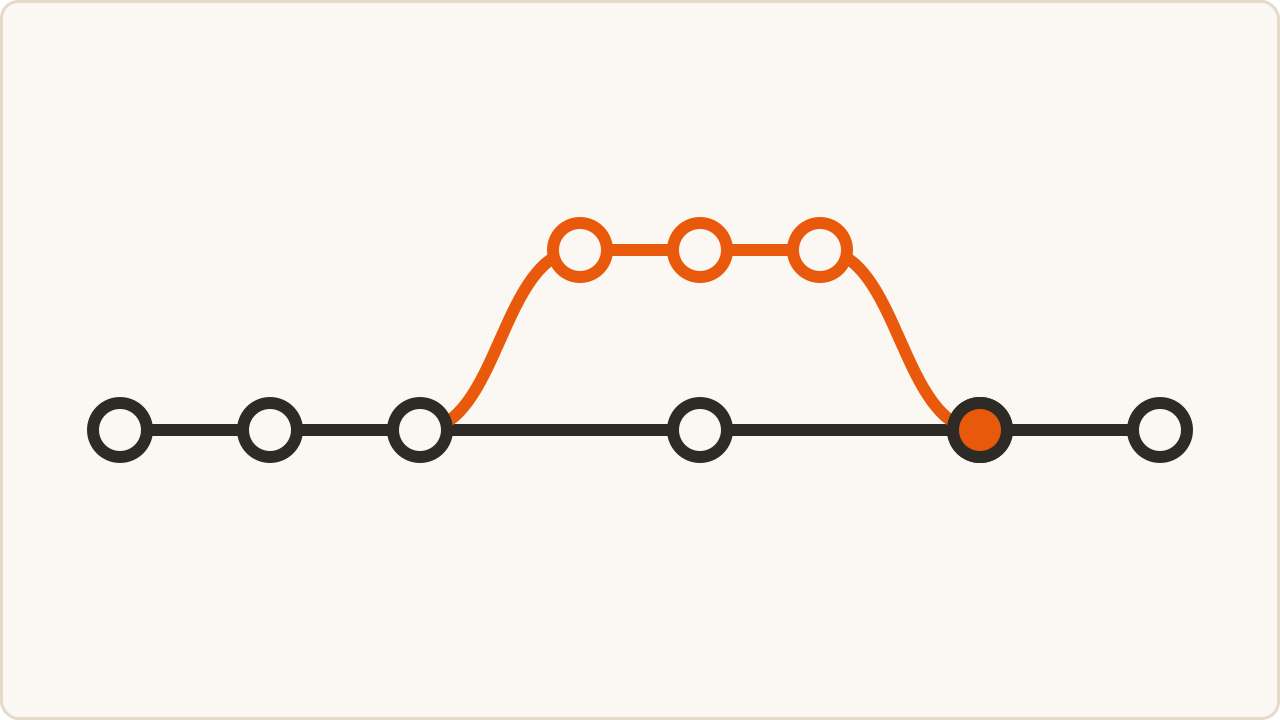
Branch: One "timeline" of commits that may diverge from other timelines
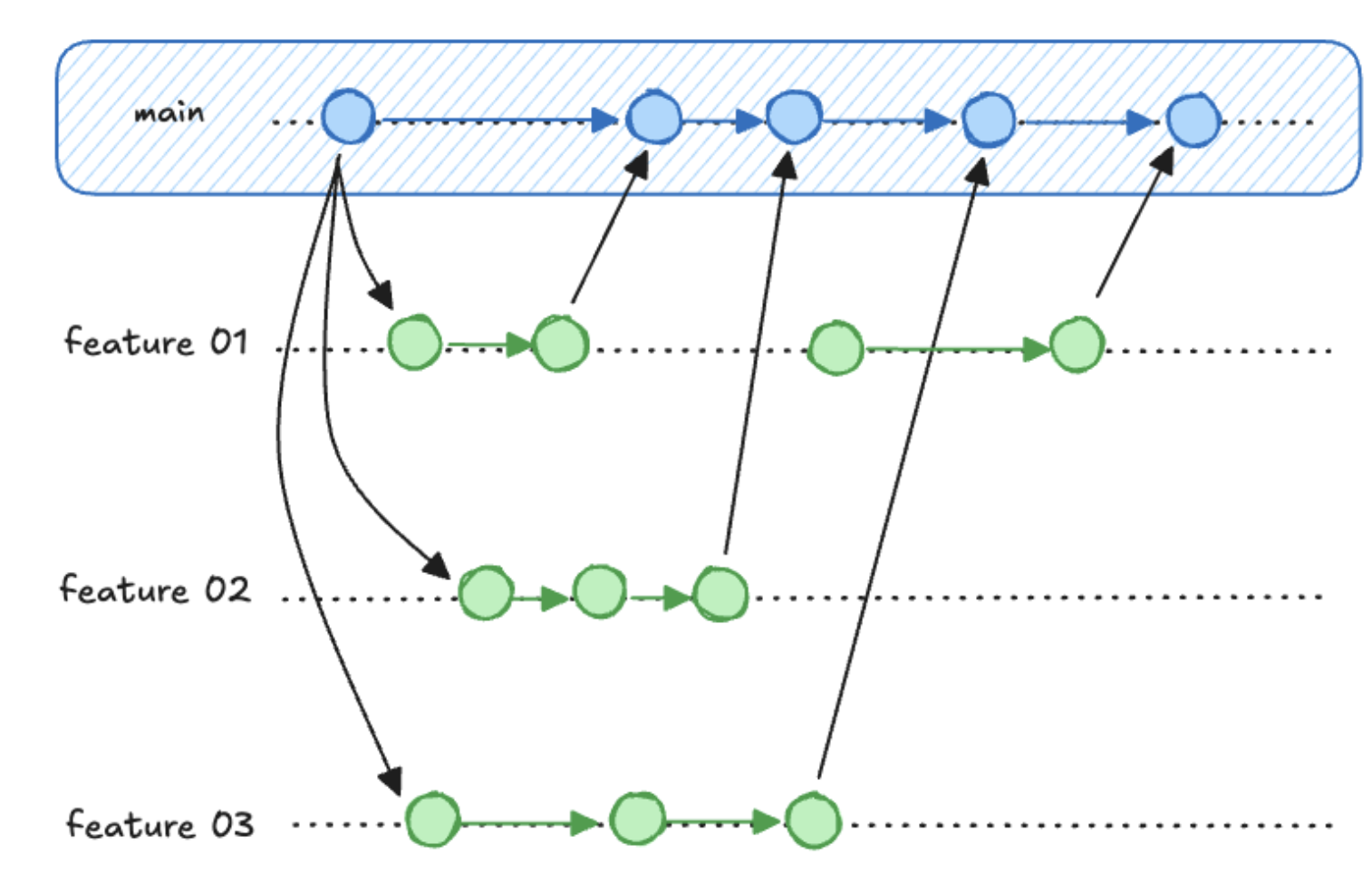
Not today. We come back to branching on Monday.
Essential Git Commands
One-Time Setup
You've done this already in discussion!
# Configure your identity (use your real name and email)
git config --global user.name "Your Full Name"
git config --global user.email "your.email@example.com"

# Set default branch name
git config --global init.defaultBranch main
Note: The community has moved away from
masteras the default branch name, but it may still be default in some installations.
Demo 1a: the project we made on Wednesday
Same command as Wednesday, so we start where you started:
cargo new hello_rust --vcs none
cd hello_rust
cargo run
ls -a          # your files, and no .git anywhere
Right now it is just a folder. Let's make it a repository.
git init       # now there's a .git folder. That IS the repository
git status     # everything is untracked, and look what showed up
Save a baseline, so there is something to compare against later.
git add src/main.rs Cargo.toml Cargo.lock   # notice what I am leaving out
git commit -m "Add the project cargo made in class"
git log
Demo 1b: change it, compare it, undo it
Now change one line in src/main.rs, and ask git what happened.
git status                 # now it says modified
git diff                   # here is exactly what I changed
That one is worth keeping, so it goes in the history the same way:
git add src/main.rs
git commit -m "Change the greeting to name the course"
git log                    # two commits now
Change it once more. This time we throw the change away.
git diff                   # the change is real
git restore src/main.rs    # and here is how I take it back
git status                 # main.rs is back, as if it never happened
Demo 2a: making a change stick
# make a real change, then
git status
git add src/main.rs        # move it to the staging area
git status                 # note that it says something different now
git commit -m "Pull the course name out into a variable"
git log                    # three commits now, yours on top

git push                   # ...and watch this fail
Demo 2b: there is nowhere to push to yet
git push cannot create a repository, so we will an empty one on GitHub first:
- Go to https://github.com/new
- Name your repo using your local folder's name (
hello_rust) keeps things simple - Choose public or private (I'll choose private)
- Leave README, .gitignore, and license off so that it starts truly empty
- Click Create repository. GitHub shows a page of commands with your URL already filled in
Then this should work
git remote add origin https://github.com/yourusername/repository-name.git
git push -u origin main
After that first push, plain git push is enough.
If you're missing a remote, git will throw an error and prompt the git remote add line line:
fatal: No configured push destination.
Either specify the URL from the command-line or configure a remote repository using

    git remote add <name> <url>
And if there's a renote but no tracked branch it will say:
fatal: The current branch main has no upstream branch.
To push the current branch and set the remote as upstream, use

    git push --set-upstream origin main
(git push -u origin main is just shorthand for git push --set-upstream origin main)
Where does everyone else's code come from?
What if you want to build upon someone else's code?
You can't edit it / push to it because you don't have write access
So you take a copy that is yours. That is a fork (or a template copy).
It's like when you get view-only access to a Google Doc and you can't edit it until you "make a copy".
A fork is your own copy of someone else's repository that you can edit. A template copy is like a fork but private and won't be used to push back to the upstream repo.
Projects are submitted by giving us the URL of your copy.
Fork copies sideways. Clone copies down.
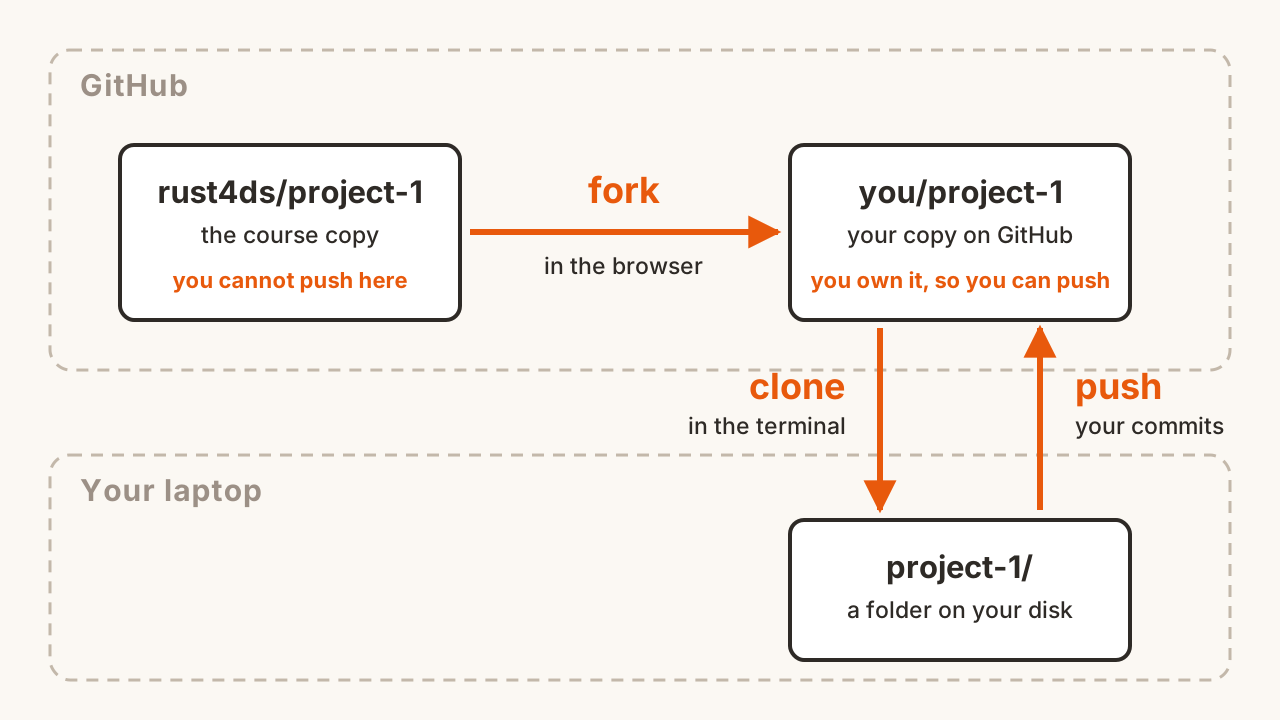
- Fork starts on GitHub, stays in GitHub
- Clone happens in the terminal. Your repo on GitHub becomes a folder on your laptop
Demo 1a went the other direction: a folder you already had became a repository. Cloning is how you start when the project already exists.
Cloning, which you do in the activity
git clone <the URL of your fork>
cd <the folder it just made>

ls -a            # .git is already here. You did not run git init
git remote -v    # and origin is already set. You did not add it
git log          # somebody else's history, now on your machine
Cloning does for you what we did by hand in Demos 1a and 2b. You never run git init, and you never add a remote.
git clone downloads to wherever you are, so run pwd before you clone and make sure that's where you want the project to live.
Writing Good Commit Messages
- Start with a present / imperative verb
- Be brief and specific
- If you find yourself using "and" a lot your commits are too big
The Golden Rule: Your commit message should complete this sentence: "If applied, this commit will [your message here]"
Good Examples:
git commit -m "Add input validation for calculator"
git commit -m "Fix division by zero error"
git commit -m "Refactor string parsing for clarity"
git commit -m "Add tests for edge cases"
Bad Examples:
git commit -m "fix a bug"        # What bug?
git commit -m "fix date range bug and added multi-user feature"  # Too much at once
git commit -m "trying again"    # What are you doing differently?
So about that target/ folder
You saw it in git status.
It holds thousands of files, up to hundreds of MB, and none of it is yours.
cargo build regenerates every bit of it from src/ and Cargo.toml.
So you don't want to keep track of it!
Anything in your repo you DON'T want tracked goes in a file called .gitignore:
target/
.DS_Store
.vscode/
.ipynb_checkpoints/
Then git status stops mentioning it and git add stops picking it up.
The rule: if a file can be regenerated, don't commit it. If you run git add and see a pile of files you don't recognize, it's time to update your .gitignore.
cargo new actually writes a .gitignore containing /target for you and runs git init unless you tell it not to. We told it not to (this time) so that you could see how it all works!
When a tool refuses, read what it says
Twice we saw git refuse to do something, but then it printed the exact command that fixed it.
This is why we love error messages!
Read the whole message before you change anything, and before you search. The answer is usually right in front of you.
Rust's compiler is the best example of this. Its errors are long because they are trying to help. We'll practice with this soon.
What we still owe you
Today was the loop you run every day, by yourself:
clone or init, change something, diff, add, commit, push
Still to come, starting Monday:
- Branches, so two people can work together without stepping on each other
- Merging, and what happens when git cannot figure it out for you
- Pull requests, which is how people review each other's code
You'll need merging for Project 1, and we recommend learning to use branches and PRs there too but won't require them until Project 2.
Getting unstuck
"What's going on??"
git status # use it until it's a reflex!
"I made a mistake in my last commit message"
git commit --amend -m "Corrected commit message"
"I want to undo a git add"
git restore --staged filename.rs
"I want to throw away changes I haven't committed yet"
git restore filename.rs        # one file
git reset --hard               # ALL uncommitted changes (CAREFUL!)
"I want to do something else"
git log    # shows commit history
git branch # shows available branches
Search and Stack Overflow are your friends here. So is git status, which is unusually good at telling you what to do next.
In-Class Activity: your first repository
Open your laptops and navigate to https://rust4ds.github.io/ds210-fa26-lectures/activities/activity_4.html for instructions.
Coming up
- Project 1 is out today. Checkpoint 1 is due Fri Sep 18, and today's activity is a head start
- Monday: reading, modifying, and breaking Rust. Also branches, merging, and what a merge conflict looks like
- Remember to complete the pre-lecture task for Monday!
Appendix: reference, not covered in lecture
We will go into git branching, merging, and pull requests more next lecture. Some notes here for your reference if you want a complete picture of git now.
Git Branching
-
Main branch: Usually called
main(ormasterin older repos) -
Feature branches: Created for new features or bug fixes
-
Isolates experimental work
-
Enables parallel development
-
Facilitates code review
Merging and Pull Requests
Merge: Combines changes from different branches. Takes commits from one branch and integrates them into another branch.
Merge Conflict: Merging may fail if both branches change the same lines. Git will point to the conflict and ask you to resolve it before finishing the merge.
Pull Request (PR): A request to merge your changes into another branch, typically used for code review. You "request" that someone "pull" your changes into the main codebase.
The branching workflow
# Create a descriptive branch name for the change you want to make
git checkout -b feature_branch

git status                   # See current state
git add filename.rs          # Add specific file to staging
git add .                    # Add all changes in current directory

git commit -m "Add calculator function"

git checkout main            # Switch back to main
git merge feature_branch     # Merge branch back into main
# merge merges the branch you NAME *into* the branch you're currently ON
Keeping in sync
cd repository

git pull    # get any changes from GitHub
git push    # send your commits to GitHub
git fetch is like git pull but stops short of merging what it downloaded. git rebase is an alternative to git merge with different history-rewriting behavior.
Resources for learning more and practicing
- Interactive online git tutorial that goes a bit deeper: https://learngitbranching.js.org/
- A downloadable app with tutorials and challenges: https://github.com/jlord/git-it-electron
- Another good tutorial (examples in Ruby): https://gitimmersion.com/
- Pro Git book (free online): https://git-scm.com/book/en/v2