Rust Practice
Lecture 9: Wednesday, February 11, 2026.
This module gives you some practice creating, editing, and running Rust projects.
Step 1: Create the Project
We will create a project from the terminal / command line. Use Git Bash if you are on windows.
-
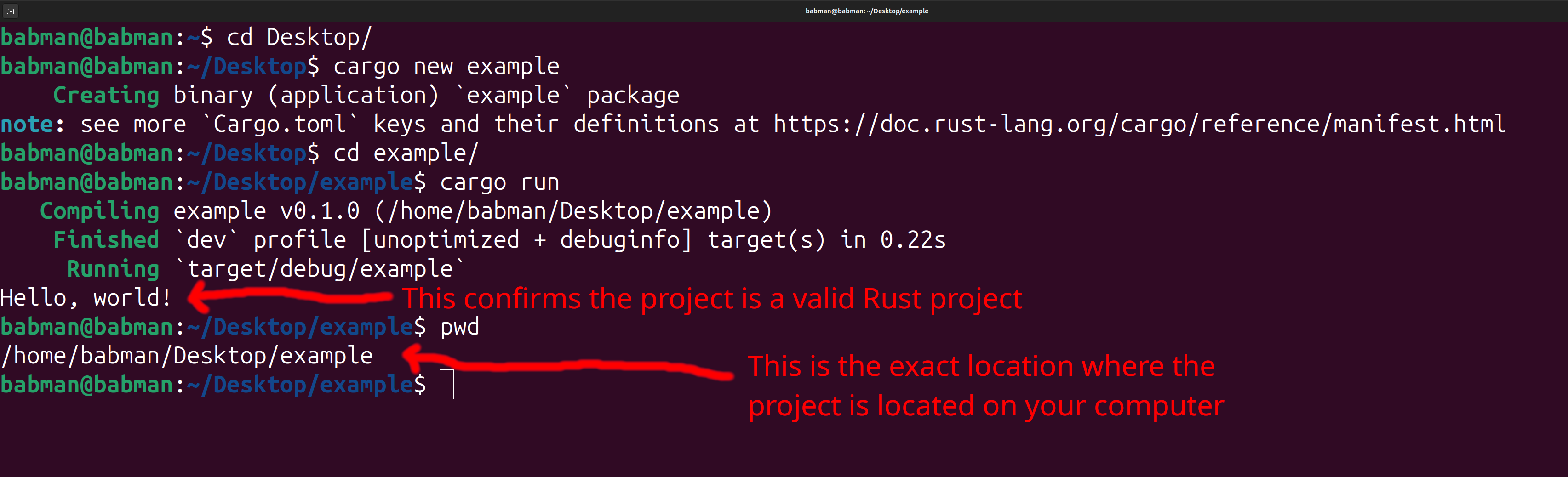
Open a terminal, and navigate to the folder where you would like your project to appear using
cd. -
Run
cargo new exampleto create a new project. In this case, we named this projectexample, but you can change the name to whatever you feel like. -
Confirm the project was created correctly by navigating to its folder using
cd exampleand running it usingcargo run. -
Use
pwdto the exact location where you created the folder.
You should see a similar output to the screenshot below, but the location of your project may be different.
Step 2: Open the project with VSCode
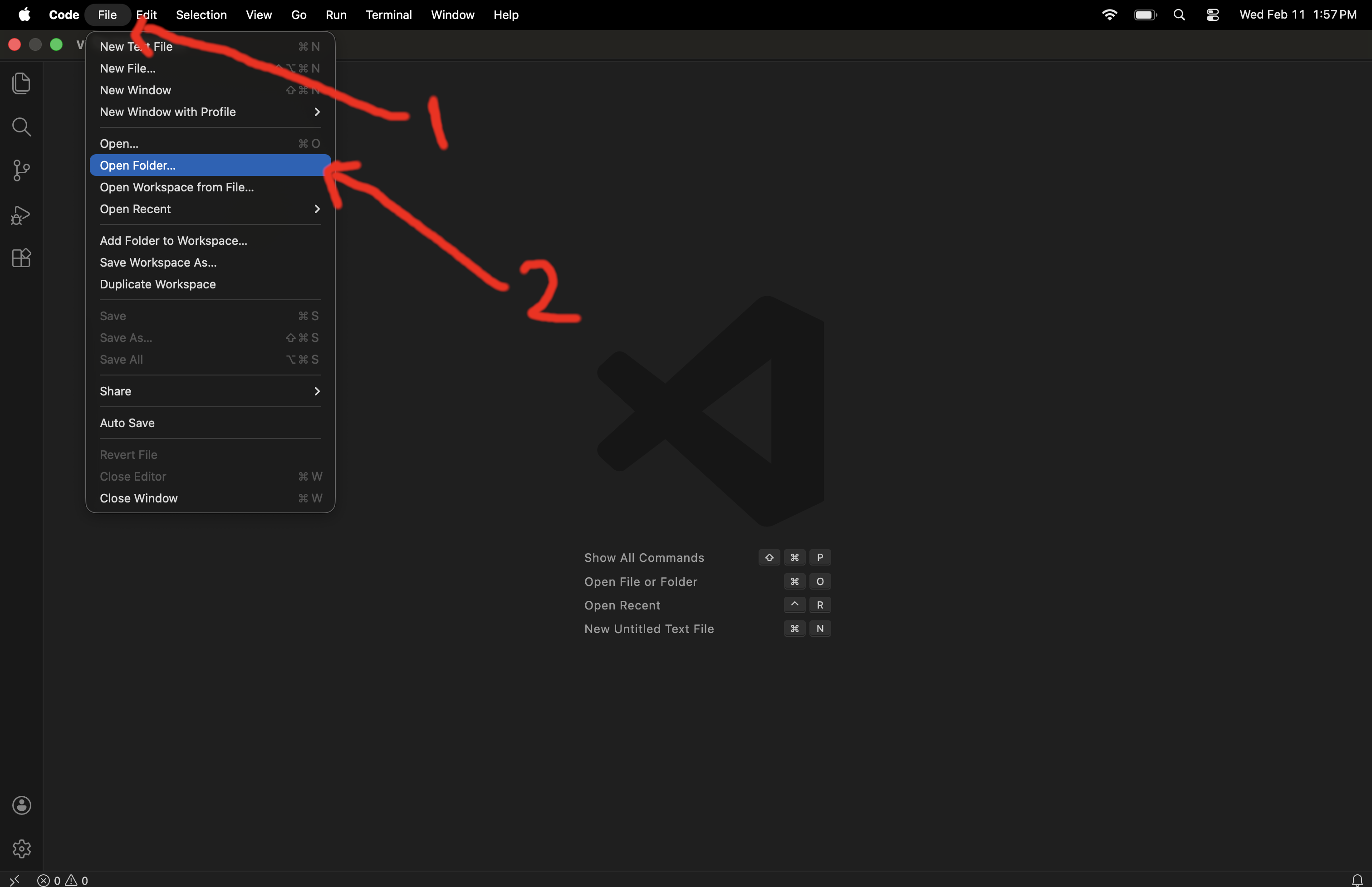
Open your VSCode, then use the file menu to click on open folder. You need to use open folder and not open.
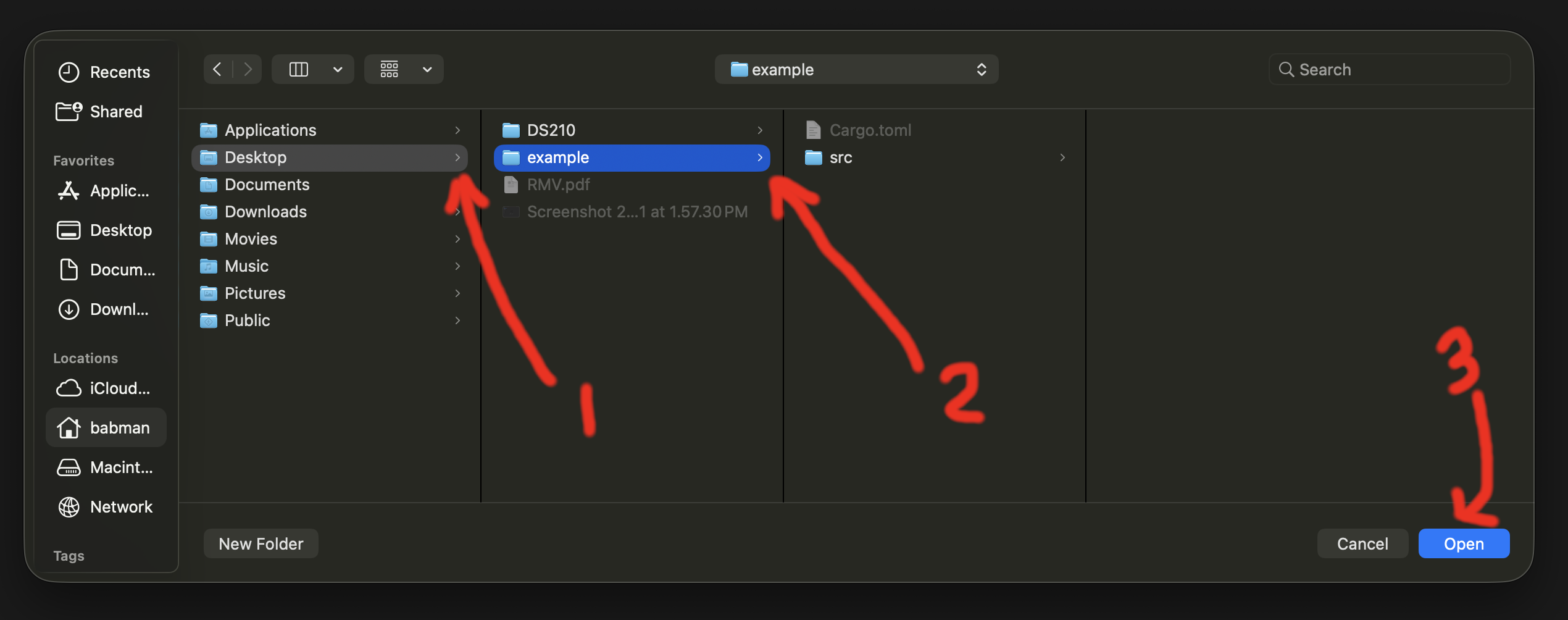
Then navigate to the location from step (4) above where you placed the project, and open the project’s folder.
Finally, use the left navigation panel to look inside src and open file main.rs to see the code. You should see the content of the file open, as well as a run button
right on top of the main function. Click run to confirm it works successfully.
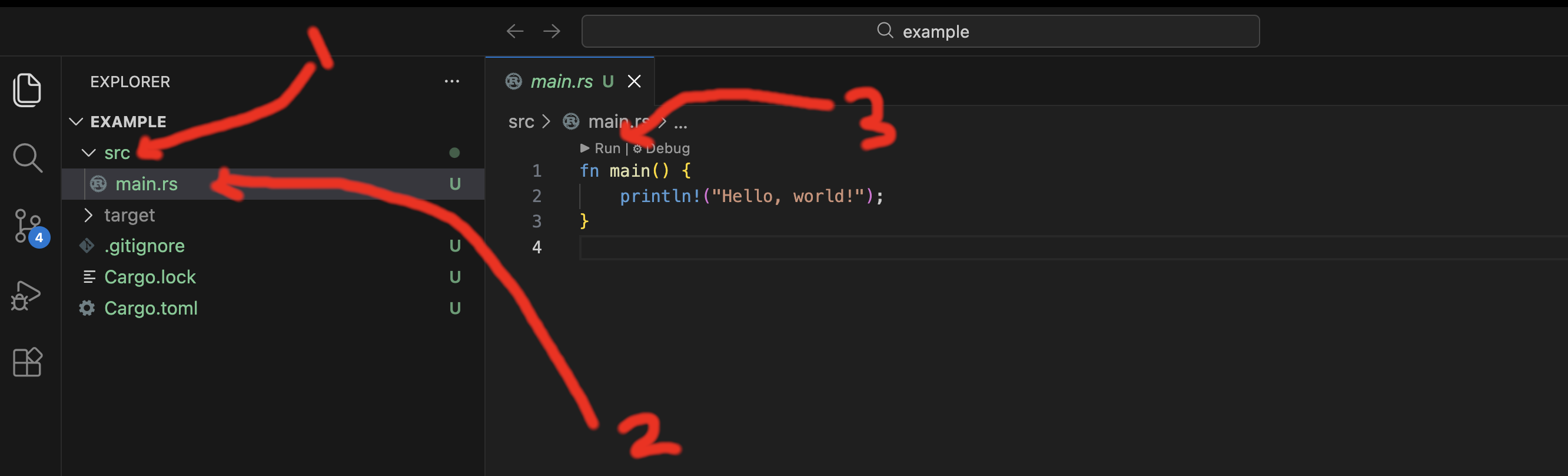
If you do not see the run button, double check that (1) rust analyzer is installed in VSCode, and (2) you used open folder and opened the correct folder – e..g, the example folder on your desktop.
Step 3: Modify and run the code
Change the code to the following:
fn main() {
    let x = 10;
    let y = 15;
    let sum = 10 + 15;
    println!("{x} + {y} = {sum}!");
}
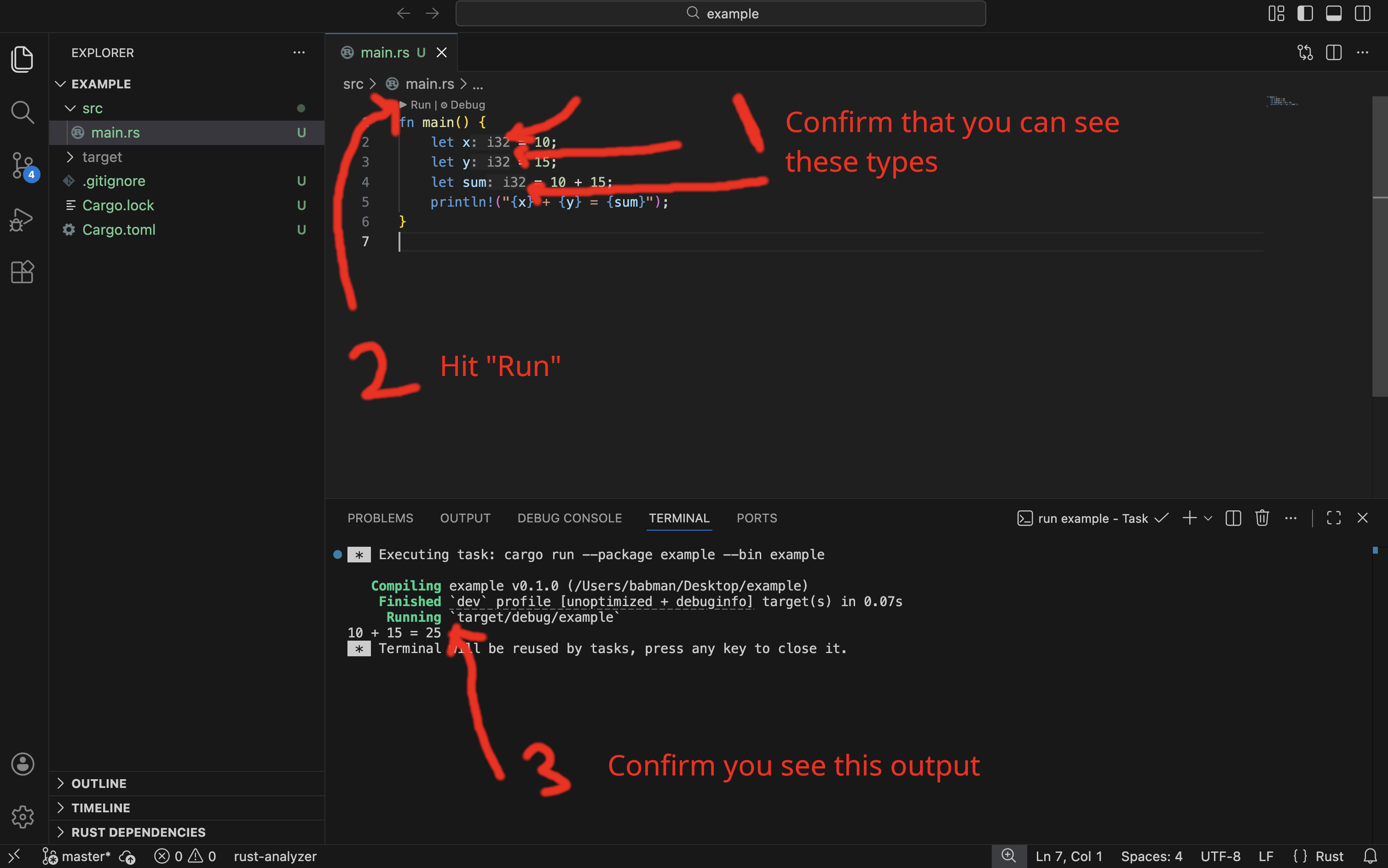
If you followed all the steps correctly, you will see VSCode add in the type of x, y, and sum automatically on your behalf, as shown in the screenshot below.
You can run the code from the command line using cargo run, and you can also run it from VSCode as below.
Step 4: Work on our first in class activity on Gradescope
For Wednesday, February 11, we will work on
Lecture 9: Option, HashMap, and match practice which you can find on Gradescope.
Erase all the code from src/main.rs and, instead, copy the provided code from Gradescope to src/main.rs.
You will see an error in VScode around the map variable being immutable. Remember what we learned in class about how to fix that error!
Then, continue to the remaining two questions.
Step 5: Work on our second in class activity on Gradescope
For Friday, February 13, we will work on
Lecture 10: loops and conditionals which you can find on Gradescope.
Erase all the code from src/main.rs and replace it with the provided code from Gradescope.
Add the missing code to solve the problem.