Shell & Terminals
Lecture 3: Wednesday, January 28, 2026, and
Lecture 4: Friday, January 30, 2026
Every movie with hackers

The matrix had a legit terminal though

What is the terminal?
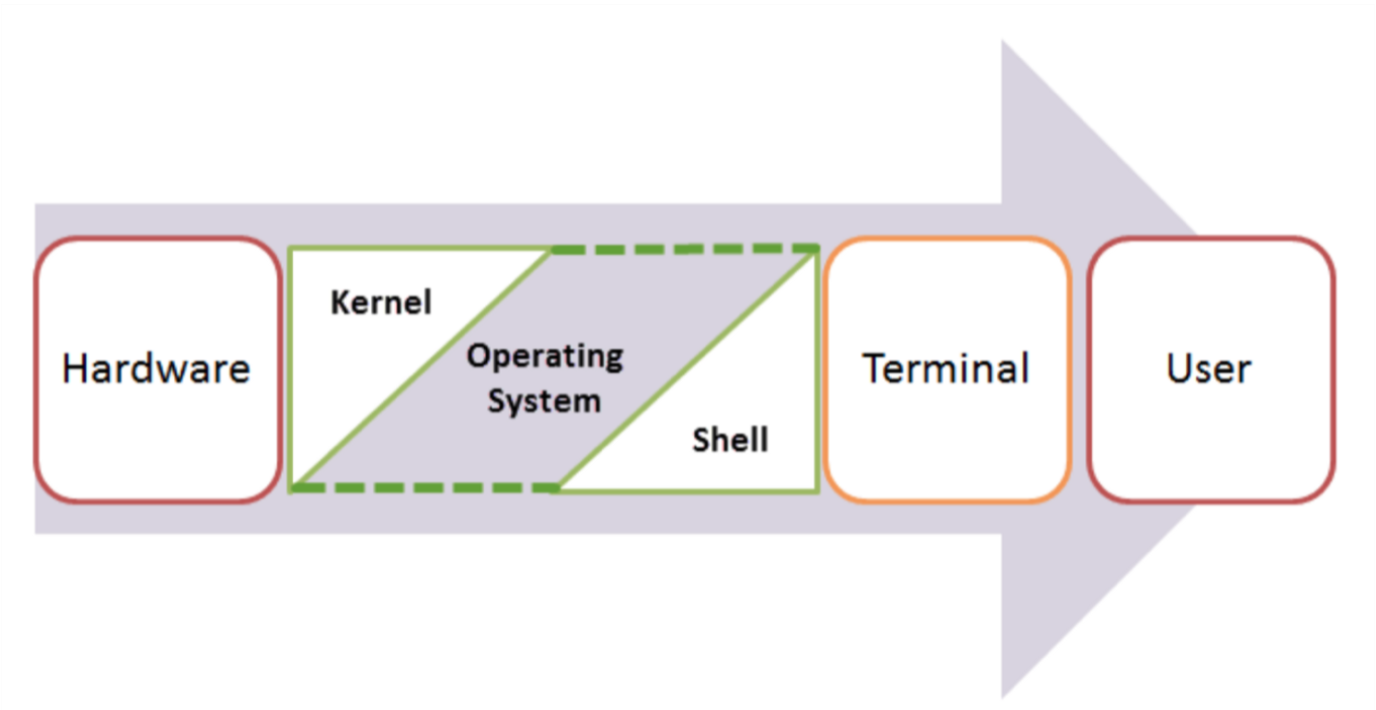
Shell, Terminal, Console, Command line… too many words?
- The command line is the interface where you type commands to interact with your computer.
- The command prompt is the character(s) before your cursor that signals you can type and can be configured with other reminders.
- The terminal or console is the program that opens a window and lets you interact with the shell.
- The shell is the command line interpreter that processes your commands. (You might also encounter “a command line” in text-based games)
Terminals are more like applications and shells are more like languages.
Some famous Terminals:
- Terminal (macOS)
- iTerm2 (macOS)
- GNOME Terminal (Linux)
- Konsole (Linux)
- Command Prompt (Windows)
- PowerShell (Windows)
- Git Bash (Windows)
Famous Shell interpreters:
- Bash (Bourne Again SHell) - most common on Linux and macOS (Kinan’s favorite)
- Zsh (Z Shell) - default on modern macOS
- Fish (Friendly Interactive SHell) - user-friendly alternative
- Tcsh (TENEX C Shell) - popular on some Unix systems
- PowerShell - advanced shell for Windows
We often use all these words interchangeably in speech:
- “Open your terminal”
- “Type this command in the shell”
- “Run this in the command line”
- “Execute this in your console”
What is this all good for?
Lightning fast navigation and action
# Quick file operations
ls *.rs                    # Find all Rust files
grep "TODO" src/*.rs       # Search for TODO comments across files
wc -l data/*.csv           # Count lines in all CSV files
Question: How would you to this “manually”?
It’s how we’re going to build and manage our rust projects
# Start your day
git pull                             # Get latest code from GitHub (today's discussion sections)
# ... code some features ...
cargo run                            # Demo your new feature
cargo test                           # run your tests
git add src/main.rs                  # Stage your changes
git commit -m "Add awesome feature"  # Save your work
git push                             # Share with the team
For when your UI just won’t cut it
Confused by “invisible files” and folders?
ls -la
Need to find a file where you wrote something a while ago?
grep -r "that thing I wrote 6 months ago"
Modify lots of files at once?
# Rename 500 photos at once
for file in *.jpg; do mv "$file" "vacation_$file"; done

# Delete all files older than 30 days
find . -type f -mtime +30 -delete
“Why is my computer fan running like it’s about to take off?”
df -h              # See disk space usage immediately
ps aux | grep app  # Find that app that's hogging memory
top                # Live system monitor
In other words, the command line provides:
- Speed: Much faster for repetitive tasks
- Precision: Exact control over file operations
- Automation: Commands can be scripted and repeated
- Remote work: Essential for server management
- Development workflow: Many programming tools use command-line interfaces
The file system and navigation
Everything starts at the root
Root Directory (/):
In Linux, the slash character represents the root of the entire file system.
(On a Windows machine you might see “C:" but on Linux and MacOS it is just “/”.)
(We’ll talk more about Windows in a minute)
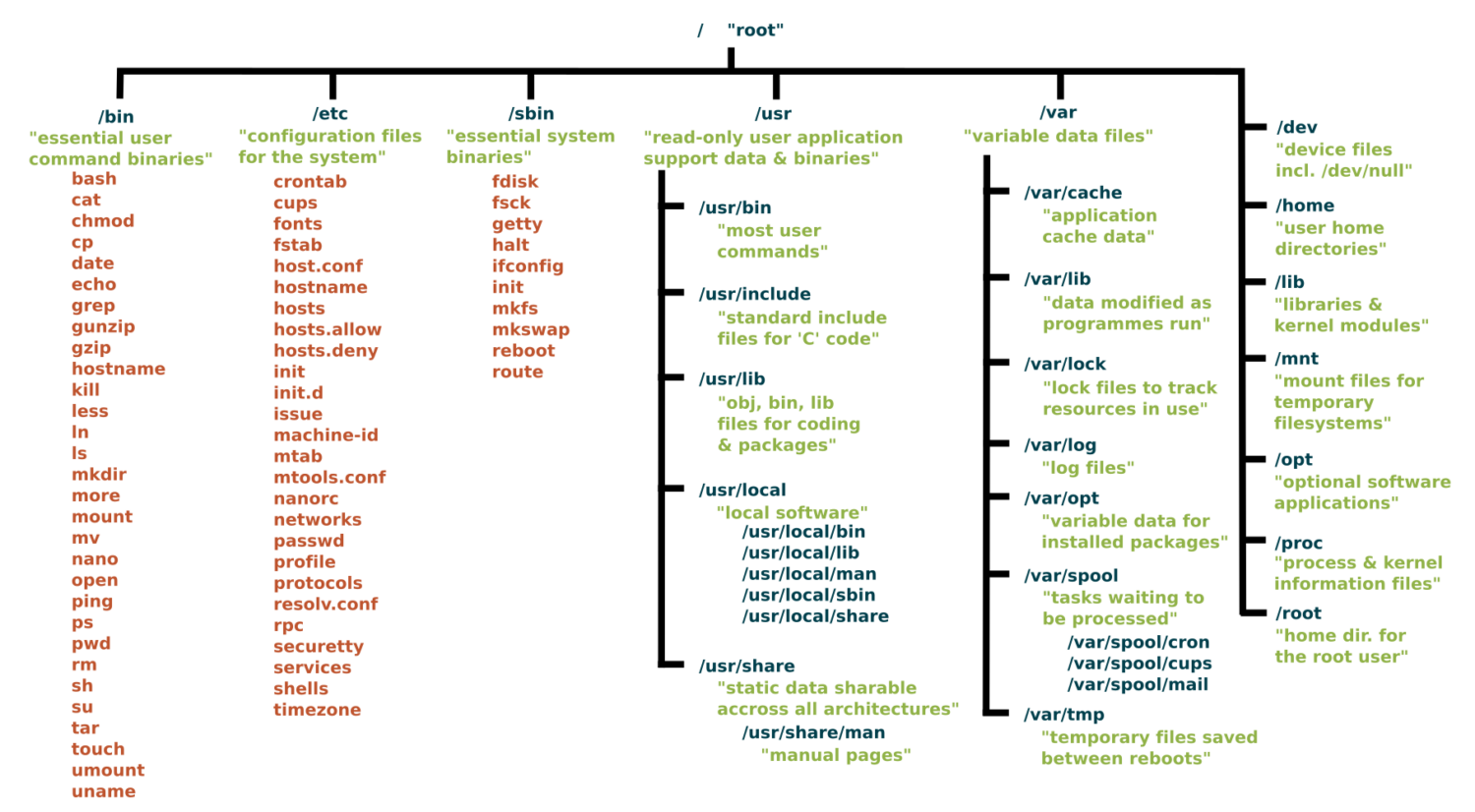
Key Directories You’ll Use:
/                          # Root of entire system
├── home/                  # User home directories
│   └── username/          # Your personal space
├── usr/                   # User programs and libraries
│   ├── bin/               # User programs (like cargo, rustc)
│   └── local/             # Locally installed software
└── tmp/                   # Temporary files
Navigation Shortcuts:
~= Your home directory.= Current directory..= Parent directory/= Root directory
Let’s take a look / basic navigation demo
Demo time! First let’s look at the command prompt…
Maybe half of your interactions with the shell will look like:
pwd                   # Print working directory
ls                    # List files in current directory
ls -a                 # List files including hidden files
ls -al                # List files with details and hidden files
cd directory_name     # Change to directory
cd ..                 # Go up one directory
cd ~                  # Go to home directory
Tips:
- Use
Tabfor auto-completion (great for paths!) - Use
Up Arrowto access command history - Try
control-cto abort something running or clear a line - You can’t click into a line to edit it, use left/right arrows (or copy-paste)
What’s going on here?
The command line takes commands and arguments.
ls -la ~
The grammar is like a command in English: VERB (NOUN) (“eat”, “drink water”, “open door”)
ls is the command, -la and ~ are arguments.
Flags / Options
Special arguments called “options” or “flags” usually start with a dash - and can be separate or combined. These are equivalent:
ls -la
ls -al
ls -a -l
ls -l -a
BUT they typically need to come before other arguments:
ls -l -a ~   # works!
ls -l ~ -a   # does not work
Winblows (or is it Windows?)
If you use Windows, I am sorry for you.
macOS and Linux are both built on top of Unix, so they share many similarities.
Windows is entirely different
dirinstead oflscopyandmoveinstead ofcpandmv
Thankfully, Windows decided to support the same language as Unix, e.g. via PowerShell and the Linux subsystem for Windows.
We strongly recommend Windows users install a terminal with
bashso we can speak the same language. Git comes with a Git Bash terminal built in!
One thing is unavoidable: different paths
/vsC:\Users\(vote for which is a back slash!)- This incompatibility has caused more suffering than metric vs imperial units.
Essential Commands for Daily Use
The rest of the 80% of bash commands you will mostly ever use
Demo time!
mkdir project_name        # Create directory
mkdir -p path/to/dir      # Create nested directories
touch notes.txt        # Create empty file
echo "Hello World" > notes.txt  # Overwrite file contents
echo "It is me" >> notes.text   # Append to file content

cat filename.txt          # Display entire file
head filename.txt         # Show first 10 lines
tail filename.txt         # Show last 10 lines
less filename.txt         # View file page by page (press q to quit)
nano filename.txt          # Edit a file

cp file.txt backup.txt    # Copy file
mv old_name new_name      # Rename/move file
rm filename               # Delete file
rm -r directory_name      # Delete directory and contents
rm -rf directory_name     # Delete dir and contents without confirmation
Understanding ls -la Output
-rw-r--r-- 1 user group 1024 Jan 15 10:30 filename.txt
drwxr-xr-x 2 user group 4096 Jan 15 10:25 dirname
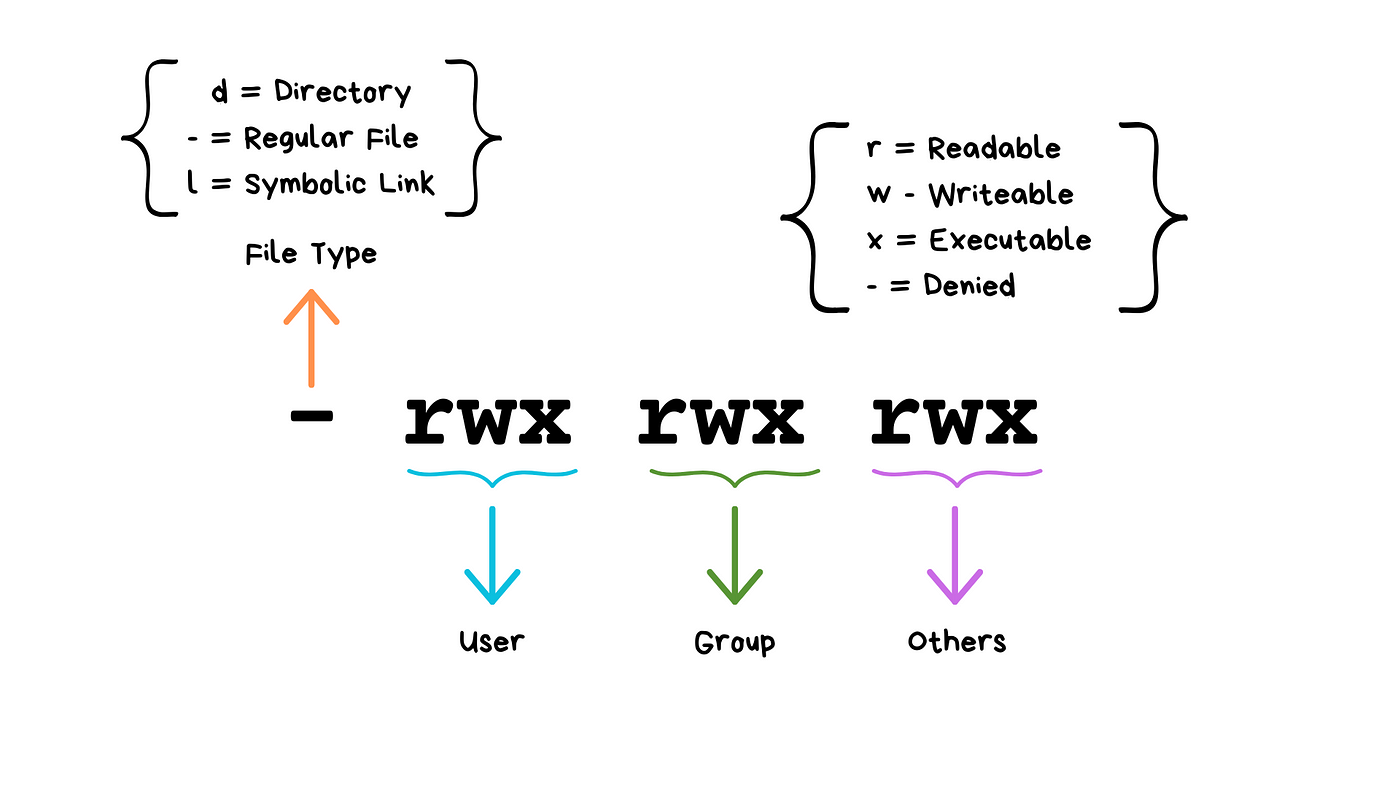
(Don’t worry about “groups”!)
We will see these kinds of permissions again in Rust programming!
Common Permission Patterns
rw-r--r--: Files you can edit, others can readrwxr-xr-x: Programs you can run, others can read/runrw-------: Private files only you can access
Don’t have permission?
You can use sudo!
sudo rm <protected_file> # removes file even if you do not have permissions
Combining Commands with Pipes
ls | grep ".txt"          # List only .txt files
cat file.txt | head -5    # Show first 5 lines of file
ls -l | wc -l            # Count number of files in directory


# Find large files
ls -la | sort -k5 -nr | head -10

# Count total lines in all rust files
cat *.rs | wc -l

# Save output of command in a file called `results.txt`
ls -la > results.txt
ls -la >> results.txt  # append
How does Shell find your commands and programs
cargo --version   # uses our earlier installation of Rust
firefox           # opens firefox!
When you execute a command, shell looks for an executable file with that exact name in specific locations (folders).
which cargo
which firefox
These specific locations are defined by the PATH environment variable.
echo $PATH
Question: Say we run a new command and get an error that says the shell cannot find it or recognize it. What could the reasons possibly be?
Shell scripts
Shell script files typically use the extension *.sh, e.g. script.sh.
Shell script files start with a shebang line, #!/bin/bash. They tell the computer which shell to use for that file!
#!/bin/bash
echo "Hello world!"
To execute shell script you can use the command:
source script.sh
In Class Activity
Part 1: Access/Install Terminal Shell
Directions for MacOS Users and Windows Users.
macOS Users:
Your Mac already has a terminal! Here’s how to access it:
-
Open Terminal:
- Press
Cmd + Spaceto open Spotlight - Type “Terminal” and press Enter
- Or: Applications → Utilities → Terminal
- Press
-
Check Your Shell:
echo $SHELL # Modern Macs use zsh, older ones use bash -
Optional: Install Better Tools (do this after class):
Install Homebrew (package manager for macOS)
/bin/bash -c "$(curl -fsSL https://raw.githubusercontent.com/Homebrew/install/HEAD/install.sh)"Install useful tools
brew install tree # Visual directory structurebrew install ripgrep # Fast text search
Windows Users:
Windows has several terminal options. For this exercise we recommend Option 1, Git bash.
When you have more time, you might want to explore Windows Subsystem for Linux so you can have a full, compliant linux system accessible on Windows.
PowerShell aliases some commands to be Linux-like, but they are fairly quirky.
We recommend Git Bash or WSL:
-
Option A: Git Bash (Easier)
- Download Git for Windows from git-scm.com
- During installation, select “Use Git and optional Unix tools from the Command Prompt”
- Open “Git Bash” from Start menu
- This gives you Unix-like commands on Windows
-
Option B (do this after class): Windows Subsystem for Linux (or for shortWSL)
# Run PowerShell as Administrator, then: wsl --install # Restart your computer # Open "Ubuntu" from Start menu -
Option C (acceptable for today if you have to): PowerShell (Built-in)
- Press
Win + Xand select “PowerShell” - Note: depending on your version, some commands may differ from what we will show you (uses
dirinstead ofls, etc.) - Not recommended for this course (or life in general).
- Press
Verify Your Setup (Both Platforms)
Run each of these commands in your terminal of choice:
pwd              # Should show your current directory
ls               # Should list files (macOS/Linux) or use 'dir' (PowerShell)
which ls         # Should show path to ls command (if available)
echo "Hello!"    # Should print Hello!
Part 2: Mini Scavenger Hunt
Complete these steps using only the command line!.
You can work in groups of up to 3 people.
You can use echo "text" > file_name to write to the file, or text editor nano.
Feel free to reference the cheat sheet below, the notes above, or use Google for help!
- Navigate to your desktop directory/folder
Hint1: use
cd <path to desktop>to navigate.
Hint2: On mac, your desktop is located at
~/Desktop. On Windows, it is usually underc:\Users\<your username>\Desktop.
Hint3: verify you are in your desktop folder using
pwd.
- Create a directory called
treasure_huntin your course projects folder.
Hint: use
mkdir.
- In that directory create a file called
command_line_scavenger_hunt.txtthat contains your name and the name of your group members, if any.
Hint: confirm the content of your file using
cat <filename>.txt.
- Then, run these lines and record the output into that
.txtfile:
whoami                    # What's your username?
hostname                  # What's your computer's name?
pwd                       # Where do you start?
echo $HOME                # What's your home directory path?
Hint: use
>>to append the output of a command to your file!
-
Inside the same directory, create another text file named
clue_1.txtwith the content “The treasure is hidden in plain sight” -
Create a sub directory called
secret_chamber -
In the
secret_chamberdirectory, create a file calledclue_2.txtwith the content “Look for a hidden file” -
Create a hidden file in the
secret_chamberdirectory called.treasure_map.txtwith the content “Congratulations. You found the treasure” -
When you’re done, change to the parent directory of
treasure_huntand run the commandzip -r treasure_hunt.zip treasure_hunt.- Or if you are on Git Bash, you may have to use the command
tar.exe -a -c -f treasure_hunt.zip treasure_hunt
- Or if you are on Git Bash, you may have to use the command
On windows, if you are unable to create this zip file, add an
error.txtfile insidetreasure_huntand put the error you received in it. You can then use the regular Windows graphical interface to zip the files.
-
Upload
treasure_hunt.zipto gradescope. You only need to upload once per group. -
Optional: For Bragging Rights Create a shell script that does all of the above commands and upload that to Gradescope as well.
Deadline: If you are not able to finish this exercise in class, you’ll have until 11:55PM tonight to finish it from home and upload to Gradescope. If you need help, ask us questions via Piazza.
Command Line Cheat Sheet
Basic Navigation & Listing
Mac/Linux (Bash/Zsh) or Windows with Git Bash or Linux subsystem:
# Navigate directories
cd ~                    # Go to home directory
cd /path/to/directory   # Go to specific directory
pwd                     # Show current directory

# List files and directories
ls                      # List files
ls -la                  # List all files (including hidden) with details
ls -lh                  # List with human-readable file sizes
ls -t                   # List sorted by modification time
Windows (PowerShell/Command Prompt):
# Navigate directories
cd ~                    # Go to home directory (PowerShell)
cd %USERPROFILE%        # Go to home directory (Command Prompt)
cd C:\path\to\directory # Go to specific directory
pwd                     # Show current directory (PowerShell)
cd                      # Show current directory (Command Prompt)

# List files and directories
ls                      # List files (PowerShell)
dir                     # List files (Command Prompt)
dir /a                  # List all files including hidden
Get-ChildItem -Force    # List all files including hidden (PowerShell)
Finding Files
Mac/Linux:
# Find files by name
find /home -name "*.pdf"           # Find all PDF files in /home
find . -type f -name "*.log"       # Find log files in current directory
find /usr -type l                  # Find symbolic links

# Find files by other criteria
find . -type f -size +1M           # Find files larger than 1MB
find . -mtime -7                   # Find files modified in last 7 days
find . -maxdepth 3 -type d         # Find directories up to 3 levels deep
Windows:
# PowerShell - Find files by name
Get-ChildItem -Path C:\Users -Filter "*.pdf" -Recurse
Get-ChildItem -Path . -Filter "*.log" -Recurse
dir *.pdf /s                       # Command Prompt - recursive search

# Find files by other criteria
Get-ChildItem -Recurse | Where-Object {$_.Length -gt 1MB}  # Files > 1MB
Get-ChildItem -Recurse | Where-Object {$_.LastWriteTime -gt (Get-Date).AddDays(-7)}  # Last 7 days
Counting & Statistics
Mac/Linux:
# Count files
find . -name "*.pdf" | wc -l       # Count PDF files
ls -1 | wc -l                      # Count items in current directory

# File and directory sizes
du -sh ~/Documents                 # Total size of Documents directory
du -h --max-depth=1 /usr | sort -rh  # Size of subdirectories, largest first
ls -lah                            # List files with sizes
Windows:
# Count files (PowerShell)
(Get-ChildItem -Filter "*.pdf" -Recurse).Count
(Get-ChildItem).Count              # Count items in current directory

# File and directory sizes
Get-ChildItem -Recurse | Measure-Object -Property Length -Sum  # Total size
dir | sort length -desc            # Sort by size (Command Prompt)
Text Processing & Search
Mac/Linux:
# Search within files
grep -r "error" /var/log           # Search for "error" recursively
grep -c "hello" file.txt           # Count occurrences of "hello"
grep -n "pattern" file.txt         # Show line numbers with matches

# Count lines, words, characters
wc -l file.txt                     # Count lines
wc -w file.txt                     # Count words
cat file.txt | grep "the" | wc -l  # Count lines containing "the"
Windows:
# Search within files (PowerShell)
Select-String -Path "C:\logs\*" -Pattern "error" -Recurse
(Select-String -Path "file.txt" -Pattern "hello").Count
Get-Content file.txt | Select-String -Pattern "the" | Measure-Object

# Command Prompt
findstr /s "error" C:\logs\*       # Search for "error" recursively
find /c "the" file.txt             # Count occurrences of "the"
System Information
Mac/Linux:
# System stats
df -h                              # Disk space usage
free -h                            # Memory usage (Linux)
system_profiler SPHardwareDataType # Hardware info (Mac)
uptime                             # System uptime
who                                # Currently logged in users

# Process information
ps aux                             # List all processes
ps aux | grep chrome               # Find processes containing "chrome"
ps aux | wc -l                     # Count total processes
Windows:
# System stats (PowerShell)
Get-WmiObject -Class Win32_LogicalDisk | Select-Object Size,FreeSpace
Get-WmiObject -Class Win32_ComputerSystem | Select-Object TotalPhysicalMemory
(Get-Date) - (Get-CimInstance Win32_OperatingSystem).LastBootUpTime  # Uptime
Get-LocalUser                      # User accounts

# Process information
Get-Process                        # List all processes
Get-Process | Where-Object {$_.Name -like "*chrome*"}  # Find chrome processes
(Get-Process).Count                # Count total processes

# Command Prompt alternatives
wmic logicaldisk get size,freespace  # Disk space
tasklist                           # List processes
tasklist | find "chrome"           # Find chrome processes
File Permissions & Properties
Mac/Linux:
# File permissions and details
ls -l filename                     # Detailed file information
stat filename                     # Comprehensive file statistics
file filename                     # Determine file type

# Find files by permissions
find . -type f -readable           # Find readable files
find . -type f ! -executable       # Find non-executable files
Windows:
# File details (PowerShell)
Get-ItemProperty filename          # Detailed file information
Get-Acl filename                   # File permissions
dir filename                       # Basic file info (Command Prompt)

# File attributes
Get-ChildItem | Where-Object {$_.Attributes -match "ReadOnly"}  # Read-only files
Network & Hardware
Mac/Linux:
# Network information
ip addr show                       # Show network interfaces (Linux)
ifconfig                          # Network interfaces (Mac/older Linux)
networksetup -listallhardwareports # Network interfaces (Mac)
cat /proc/cpuinfo                 # CPU information (Linux)
system_profiler SPHardwareDataType # Hardware info (Mac)
Windows:
# Network information (PowerShell)
Get-NetAdapter                     # Network interfaces
ipconfig                          # IP configuration (Command Prompt)
Get-WmiObject Win32_Processor      # CPU information
Get-ComputerInfo                   # Comprehensive system info
Platform-Specific Tips
Mac/Linux Users:
- Your home directory is
~or$HOME - Hidden files start with a dot (.)
- Use
man commandfor detailed help - Try
which commandto find where a command is located
Windows Users:
- Your home directory is
%USERPROFILE%(Command Prompt) or$env:USERPROFILE(PowerShell) - Hidden files have the hidden attribute (use
dir /ahto see them) - Use
Get-Help commandin PowerShell orhelp commandin Command Prompt for detailed help - Try
where commandto find where a command is located
Universal Tips:
- Use Tab completion to avoid typing long paths
- Most shells support command history (up arrow or Ctrl+R)
- Combine commands with pipes (
|) to chain operations - Search online for “[command name] [your OS]” for specific examples