Discussion Section 1: Setup Rust
Date: Wednesday, January 21, 2026
Led by: Taishan Chen
Rust Compiler, IDE, and git Setup
Our first discussion sections are dedicated to help you get your machines setup with the Rust compiler and package manager (cargo),
our Rust IDE (VSCode) and Rust analyzer.
To get setup, follow these instructions and do not hesitate to ask us for help during the discussion section or office hours.
You should also install Git using these instructions.
How do you know if you have succeeded in setting up Rust
Use these steps to test that your setup is successfully.
To test your Rust (cargo) installation:
- Run the following command in your command line (Mac/Linux) or power shell (Windows):
cargo --version
The output should show cargo version 1.92.0 or later.
- Create a hello world Rust project by navigating to a folder of your choosing (e.g., your desktop) and running the following command via your command line (Mac/Linux) or power shell (Windows):
# make sure you are in the desktop directory/folder
cargo new hello_world --bin
- Run the hello world Rust project using:
# make sure you are in the desktop directory/folder
cd hello_world   # change directory to inside of the hello_world project
cargo run        # run the project
If successful, you should see the following output:
Hello, world!
To test VSCode
Open the hello world Rust project in VSCode, then, open src/main.rs. You should be able to see your code with syntax highlighting on.
You should also be able to run the project from within VSCode and see the above output.
To test VSCode+Rust analyzer
After you open src/main.rs in VScode, change the content of the file to:
fn main() {
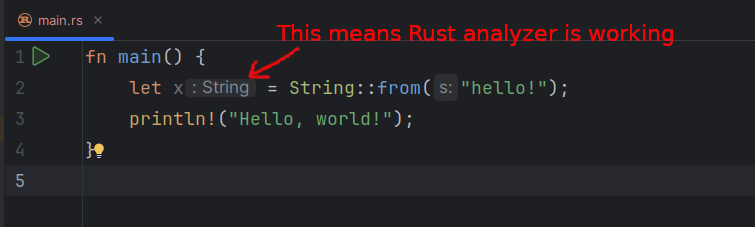
    let x = String::from("hello!");  # Add this line
    println!("Hello, world!");
}
VSCode should automatically update the syntax highlighting/coloring. VSCode should be able to use Rust analyzer to automatically deduce the type of variable x and show the type next to it in gray, similar to the image shown below.
Common issues
Windows
C++ Redistributable Package: You may not have Microsoft’s visual c++ redistributable package installed. If you do not, the Rust compiler
may appear to be installed successfully but fail to work when run. You can fix this error by installing this package from here.
Path Environment Variable: If you get an error saying that cargo cannot be found or is unrecognizable when you attempt to run cargo --version,
you must manually add %USERPROFILE%\.cargo\bin to your path environment variable. You can do that by following this video, but make sure
to add %USERPROFILE%\.cargo\bin instead of what the video uses (python directory).
Missing link.ex: You may not have the C++ build tools (including the linker) installed. If so, when you try to compile/run a Rust project, you will get an error about missing link.exe.
In this case, you will need to install the windows SDK and the MSVC C++ Build tools from https://visualstudio.microsoft.com/downloads/. Choose the latest version of both that is compatible with your machine.
Mac
Mac VSCode Command Line: The default command line in VSCode on Mac is Zsh which may give you some headache or not work. If so, you can change it to bash
which is friendlier for Rust using these instructions.