Lecture 2 - Hello shell: talking to your computer
Announcements
Learning objectives for today
By the end of this lecture, you should be able to:
- Navigate your file system on the command line
- Create, copy, move, and delete files and directories at the command line
- Interpret file permissions
We will also discuss, but you are not responsible for:
- Use pipes and redirection for basic text processing
- Write simple shell scripts
 We'll have one of these slides every lecture and it's a great way to check in on what material you're responsible for for exams!
Let's play a game

That was a conversation with a fixed vocabulary
take lamp worked, but grab lamp didn't.
- The game knows a finite list of verbs
- There is no menu showing you what they are
- Being close does not count
Your shell works exactly the same way.
Commands and arguments
The shell takes commands and arguments, same as the game.
pwd
cd Documents
cat notes.txt
The grammar is a command in English: VERB (NOUN). "run", "drink water", "open door"
pwd is a verb on its own. cd and cat want a noun.
Once you can read those, the weirder ones come apart the same way:
ls -la ~
ls is the command. -la and ~ are both arguments.
What is a computer terminal?
A terminal is an interface between you and a computer, that shows text you typed and text the computer generated back.
It looks pretty similar today as it did fifty years ago.
Let's open one
Demo time.
Shell, Terminal, Console, Command line... and what's Bash?
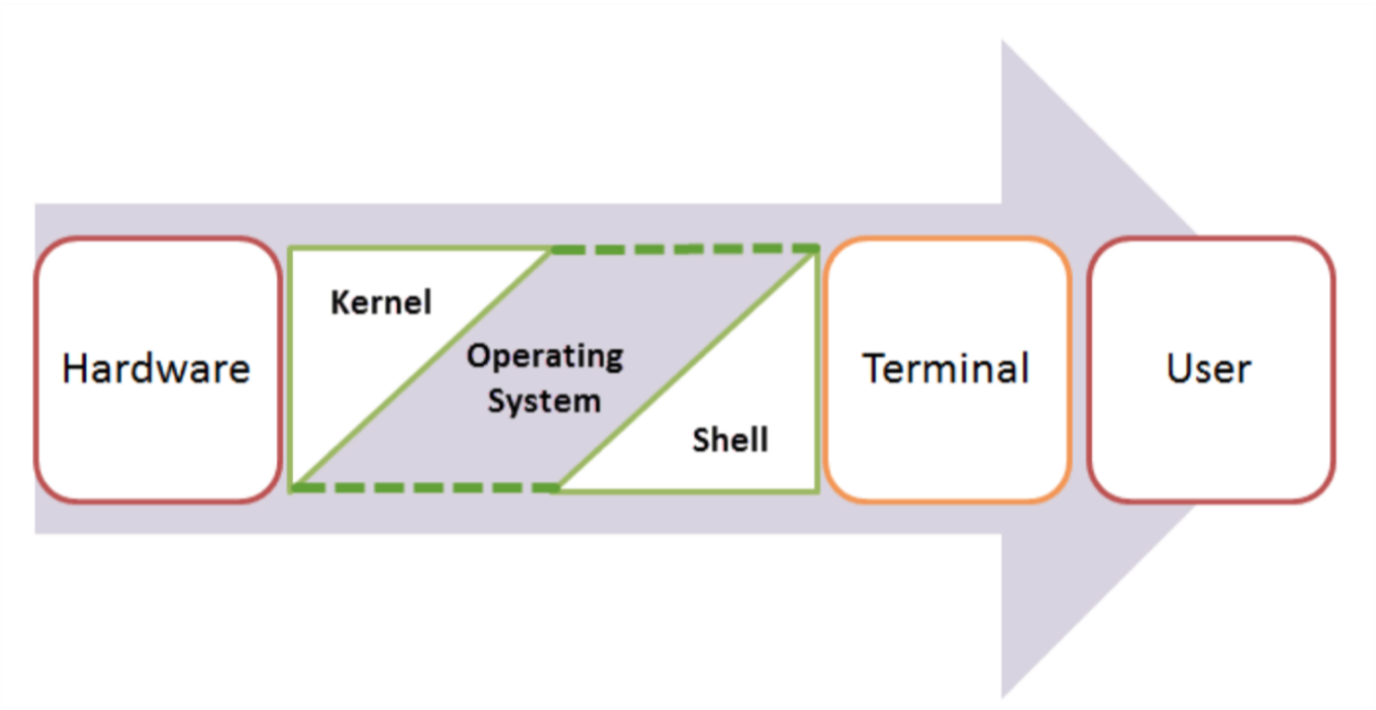
- The command line is the interface where you type commands to interact with your computer.
- The command prompt is the character(s) before your cursor that signals you can type and can be configured with other reminders.
- The terminal or console is the program that opens a window and lets you interact with the shell.
- The shell is the command line interpreter that processes your commands.
Terminals are more like applications and shells are more like languages.
Shell, Terminal, Console, Command line... and what's Bash?
BUT they are often used interchangeably in speech:
- "Open your terminal"
- "Type this command in the shell"
- "Run this in the command line"
- "Execute this in your console"
The distinction matters when something breaks. The rest of the time, nobody is careful.
FYI - None of this lecture is about Rust
- 1971: The Unix Shell
- 1989: Bash
- 2005: Git
- 2015: Rust
If any part of this course will be useful 30 years from now, it's this stuff.
(Your AI is using it all the time too!)
The file system and navigation
Where does a file actually live?
You save something "to your Desktop." Where is it?
Everything starts at the root
Root Directory (/):
In Linux, the slash character represents the root of the entire file system.
(On Windows you may see "C:", on Linux and macOS it's just "/".)
(We'll talk more about Windows in a minute)
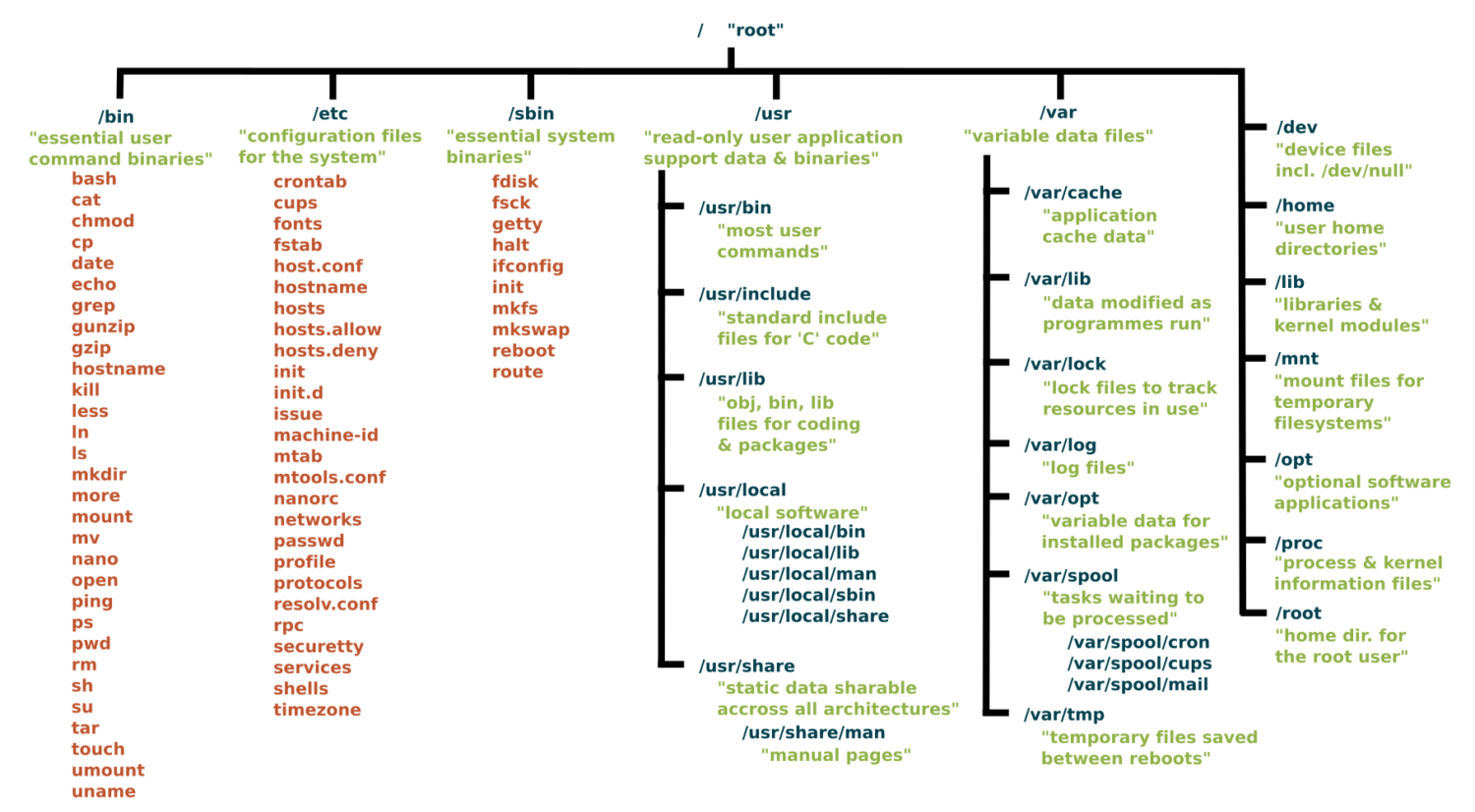
Key Directories You'll Use:
/                          # Root of entire system
├── home/                  # User home directories
│   └── username/          # Your personal space
├── usr/                   # User programs and libraries
│   ├── bin/               # User programs (like cargo, rustc)
│   └── local/             # Locally installed software
└── tmp/                   # Temporary files
Navigation Shortcuts:
~= Your home directory.= Current directory..= Parent directory/= Root directory
Let's take a look / basic navigation demo
Demo time! Let's look around... and see if we can find the desktop
Maybe half of your interactions with the shell will look like:
pwd                   # Print working directory
ls                    # List files in current directory
ls -a                 # List files including hidden files
ls -al                # List files with details and hidden files
cd directory_name     # Change to directory
cd ..                 # Go up one directory
cd ~                  # Go to home directory
Putting it together, can we get there?
Tips:
- Use
Tabfor auto-completion (great for paths!) - Use
Up Arrowto access command history - Try
control-cto abort something running or clear a line - You can't click into a line to edit it, use left/right arrows (or vim, or copy-paste)
Flags / Options
Special arguments called "options" or "flags" usually start with a dash - and can be separate or combined. These are equivalent:
ls -la
ls -al
ls -a -l
ls -l -a
BUT they typically need to come before other arguments:
ls -l -a ~   # works!
ls -l ~ -a   # does not work
Understanding ls -la Output
-rw-r--r-- 1 user group 1024 Jan 15 10:30 filename.txt
drwxr-xr-x 2 user group 4096 Jan 15 10:25 dirname
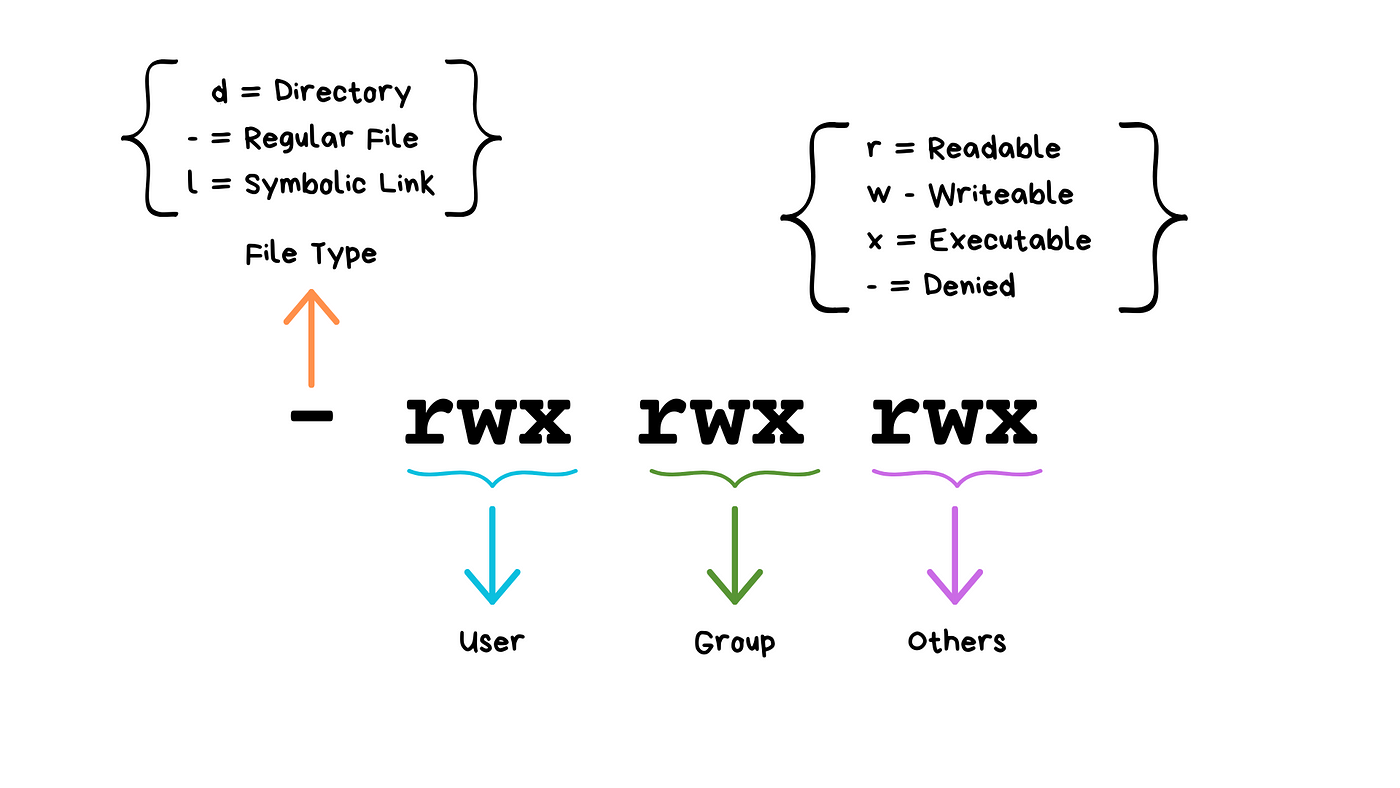
(Don't worry about "groups"!)
We will see these kinds of permissions again in Rust programming!
Don't have permission? Don't tell anyone I told you this but...
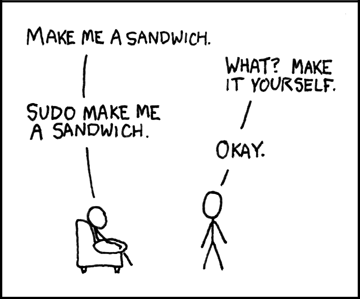
What do you think sudo stands for?
Sorry, Windows users
- macOS is built on Unix, so its terminal already speaks bash
- Windows ships its own shells (Command Prompt, PowerShell), which use different names
dirinstead oflscopyandmoveinstead ofcpandmv
- We strongly recommend Windows users install a terminal with
bash(we'll do it today!) so we can speak the same language.
With Git Bash, Windows gets Unix tools, so ls, cp, mv, cat, and pwd work the same as on a Mac or Linux.
BUT anything owned by the OS (rather than the shell) is still different:
- macOS opens a file with
open - Windows uses
startorexplorer .
One thing is unavoidable and painful: different paths
/vsC:\Users\- This incompatibility has caused more suffering than metric vs imperial units.
Quiz time!
What do these stand for and what do they do:
pwdcdls
And
- How can you "get home quickly"?
These slides make a great starting point for Anki!
Reverse, reverse!
- How can you see the name of the directory you're in?
- How can you look around to see what's in the folder?
- How can you go into one of those folders?
- How can you back out?
- How can you see hidden files?
The rest of the 80% of bash commands you will mostly ever use
mkdir project_name              # Create directory
mkdir -p path/to/dir            # Create nested directories
touch notes.txt                 # Create empty file
echo "Hello World" > notes.txt  # Overwrite file contents
echo "It is me" >> notes.txt    # Append to file content

cat filename.txt                # Display entire file
head filename.txt               # Show first 10 lines
tail filename.txt               # Show last 10 lines
less filename.txt               # View file page by page (press q to quit)
nano filename.txt               # Edit a file

cp file.txt backup.txt          # Copy file
mv old_name new_name            # Rename/move file
rm filename                     # Delete file
rm -r directory_name            # Delete directory and contents
rm -rf directory_name           # Delete dir and contents without confirmation
Three ways to go further
So far we've run one command at a time. We can build on that.
| a pipe sends one program's output straight into another program.
ls -la | sort -k5 -nr | head -10 # the ten biggest things here
> redirection sends it into a file instead. >> adds to the end rather than overwriting.
ls -la > results.txt
.sh a shell script is a saved copy-paste. Put your commands in a file, start it with #!/bin/bash, run it with source script.sh.
You do not need any of these today, but I'd bet you'll use all three eventually.
So what is all this good for?
Things you already know how to do, without the clicking
python3 analysis.py         # Run a script. No IDE, no notebook
pip install pandas          # You have done this one already
code .                      # Open this folder in VS Code
And things you probably did not know you could do from here:
open .                                          # this folder, in Finder
open -a Spotify                                 # launch an app
open "https://google.com/search?q=what+is+bash" # search the web
open is macOS. In Git Bash it is start, on Linux xdg-open.
For when your UI just won't cut it
# Rename 500 photos at once
for file in *.jpg; do mv "$file" "vacation_$file"; done

# Delete everything you have not touched in 30 days
find . -type f -mtime +30 -delete

# Why is my fan running like it is about to take off?
ps aux | grep app  # Find that app that's hogging memory
df -h              # See disk space usage immediately

# Find that file where you wrote something six months ago
grep -r searchterm .     # this folder and everything under it
grep -r searchterm ~     # your whole home directory. Go get a coffee
In-Class Activity: Shell Challenge
Navigate to the course website for activity instructions.
https://rust4ds.github.io/ds210-fa26-lectures/activities/activity_2.html
Upload your work, however far you get, on Gradescope by the end of class.
You may discuss side-by-side but please each complete and submit separately.
Wrap up
Questions from the activity or anything today?
Coming up
- No class Monday, Labor Day
- Your first discussion meets Tuesday / Wednesday and it's an important one where you'll get help getting all your tools set up. If you miss it, you won't be ready for class Friday.
- Pre-lecture task due Wednesday (shell exploration)
- We start Rust on Wednesday! Get excited. Wear crab-themed attire. Or not. (That would be weird?)
- Next Friday: git and GitHub, and Project 1 goes out
Appendix: for reference, not covered in lecture
How does Shell find your commands and programs
python --version  # checks what version of python we have
firefox           # opens firefox!
When you execute a command, the shell looks for an executable file with that exact name in specific locations (folders).
which python
which firefox
These specific locations are defined by the PATH environment variable.
echo $PATH
Common Permission Patterns
644orrw-r--r--: Files you can edit, others can read755orrwxr-xr-x: Programs you can run or edit, others can read/run600orrw-------: Private files only you can access
(Any guesses about the numeric codes?)
Terminals and shells come in proper nouns
Terminals:
- Terminal (macOS)
- iTerm2 (macOS)
- GNOME Terminal (Linux)
- Konsole (Linux)
- Command Prompt (Windows)
- PowerShell (Windows)
- Git Bash (Windows)
Shells:
- Bash (Bourne Again SHell) - most common on Linux and macOS
- Zsh (Z Shell) - default on modern macOS
- Fish (Friendly Interactive SHell) - user-friendly alternative
- Tcsh (TENEX C Shell) - popular on some Unix systems
- PowerShell - advanced shell for Windows
Your shell profile
Your shell reads a configuration file when it starts up. This is where you can add aliases, modify your PATH, and customize your environment.
- macOS (zsh):
~/.zshrc - macOS (bash):
~/.bash_profileor~/.bashrc - Linux (bash):
~/.bashrc - Windows Git Bash:
~/.bash_profile
It is in your home directory.
# Check which shell you're using (macOS/Linux)
echo $SHELL

echo $HOME/.zshrc          # macOS with zsh
echo $HOME/.bash_profile   # macOS/Linux with bash
Adding aliases to your shell profile
# Edit your shell configuration file (choose the right one for your system)
nano ~/.zshrc        # macOS zsh
nano ~/.bash_profile # macOS bash or Git Bash
nano ~/.bashrc       # Linux bash

# Add these helpful aliases:
alias ll='ls -la'
alias ..='cd ..'
alias ...='cd ../..'
alias projects='cd ~/development'
alias grep='grep --color=auto'

# Custom functions
# This will make a directory specified as the argument and change into it
mkcd() {
    mkdir -p "$1" && cd "$1"
}
Modifying your PATH
You may need to do this occasionally to make tools you install available on the command line.
# Add to your shell configuration file
export PATH="$HOME/bin:$PATH"
export PATH="$HOME/.cargo/bin:$PATH"    # For Rust tools (we'll add this later)
Applying changes:
source ~/.zshrc        # For zsh
source ~/.bash_profile # For bash

# Or start a new terminal session, or run: exec $SHELL